Archive a Punch Card
Archiving a Punch Card allows you to remove it from the platform's default search results without actually deleting the Punch Card or its associated Punch Card Responses. The archived Punch Card will not be visible to Members on your website or app, so Members will no longer be able to respond to the Punch Card.
However, if a Member has started the Punch Card prior to it being archived, and then you archive the Punch Card, the Member will still be able to complete additional punches and finish the Punch Card.
You can archive a Punch Card from either the Punch Cards screen, or from the Punch Card Details screen.
To archive a Punch Card from the Punch Cards screen:
-
Select Campaigns from the top navigation bar, then select Punch Cards > Punch Cards from the side navigation menu. The Punch Cards screen is displayed.
-
Search for the desired Punch Card (see
-
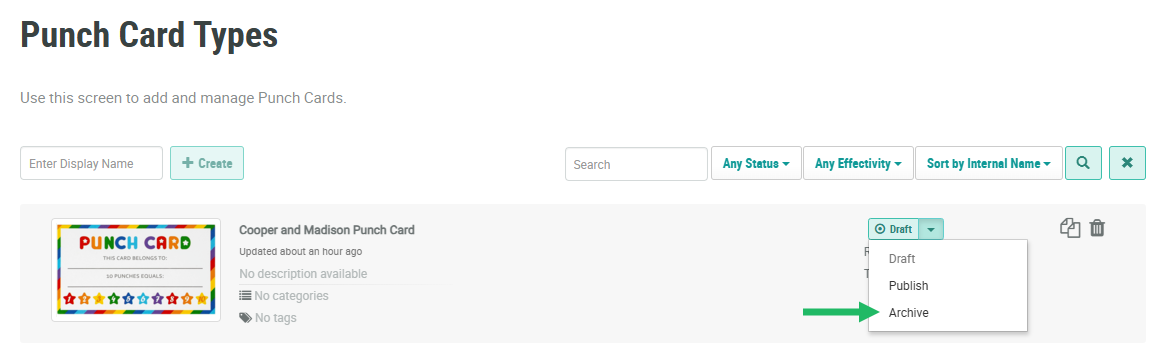
Next to the desired Punch Card, from the Status drop-down menu, select Archive. A confirmation dialog box is displayed; click Confirm.
To archive a Punch Card from the Punch Card Details screen:
-
Select Campaigns from the top navigation bar, then select Punch Cards > Punch Cards from the side navigation menu. The Punch Cards screen is displayed.
-
Search for and select the desired Punch Card (see
-
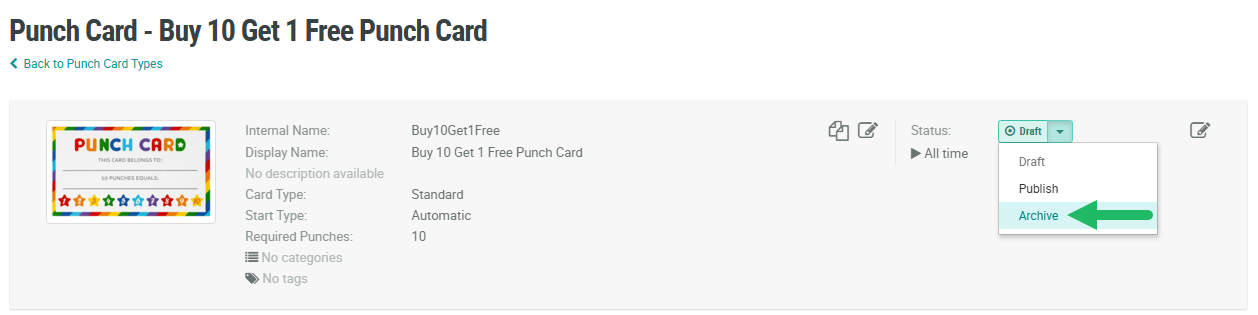
Within the header area of the screen, from the Status drop-down menu, select Archive. A confirmation dialog box is displayed; click Confirm.